A Lookup Activity provides an easy way to obtain an iterator over dataset records. When this activity is used to read a configuration dataset, for example, then it is easy to pass this configuration into our pipelines, linked services, data flows, and activities. In this way, we create powerful and dynamic pipelines. This post demonstrates the Azure Data Factory Lookup Activity and using the ForEach Activity to craft dynamic SQL queries. There is a bit about passing Parameters as well.
Create the Configuration Table in Azure SQL
Create a table with the following schema:
CREATE TABLE MaintenanceQueries (

    Building_Id VARCHAR(5),

    Log_Date DATE

);
Afterwards, insert some test records as shown below:

This table represents queries that need to be processed. Get the maintenance logs where Building_Id is B001 and the Log_Date of the record is 2024-01-08, for example in row 1.
Create a Stored Procedure to Query Logs
This is the SPROC I created:
CREATE PROCEDURE GetMaintenanceByBuildingAndDate

    @BuildingId VARCHAR(5),

    @LogDate DATE

AS

BEGIN

    SELECT Building_Id, Log_Date, Maintenance_Type, Cost

    FROM Maintenance_Logs

    WHERE Building_Id = @BuildingId AND Log_Date = @LogDate;

END;
Connect the Lookup Activity to SQL
There’s already a Linked Services to the appropriate database server, but I’m going to create a new instance to demonstrate that the server and database name for a Linked Service are configurable.
They’ll be statically defined when using the Linked Service in this post’s examples, but these values could also be passed in to the Pipeline via Execute Pipeline parameters as a common scenario
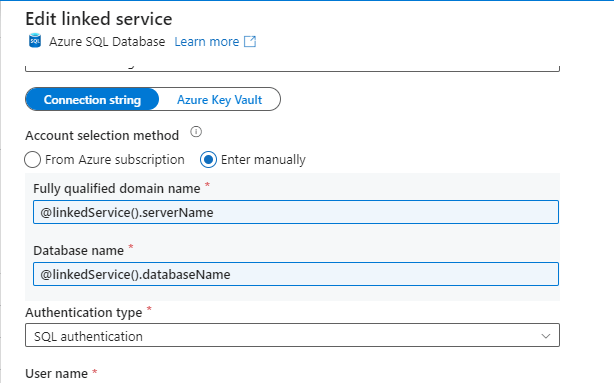
Following this, add the Lookup Activity, and set its Source to use the new Linked Service. Specify the Linked Service parameter values, then set “Table name” property as the Maintenance Queries table


Once configured, the Settings tab will refresh with new properties. Uncheck “First row only”.

Feed the Lookup into a ForEach Activity
Add a ForEach Activity and connect the Lookup Activity ‘On success’ handle to the ForEach. Configure the ForEach to be a sequential loop over the Lookup Activity’s value array:

Configure ForEach and Copy Data Activity
Add a Copy Data Activity inside of the ForEach, and set its source to point to the new GetMaintenanceByBuildingAndDate Stored Procedure.
Add two parameters named “BuildingId” and “LogDate” per the Stored Procedure’s definition. Their values are set to the current loop item’s “Building_Id” and “Log_Date which, again, are coming from the MaintenanceQueries table via the Lookup/ForEach iteration.

Set the Sink to be an Azure Data Lake container.
Run the Azure Data Factory Lookup and ForEach Activity
After triggering the Pipeline, view the new files in your Data Lake for each of the BuildingId and LogDate query entries you dynamically generated via the ForEach and Copy Data activities.
For reference, please review https://learn.microsoft.com/en-us/azure/data-factory/control-flow-lookup-activity and https://learn.microsoft.com/en-us/azure/data-factory/control-flow-for-each-activity.
Categories: Azure Data Factory
Leave a Reply