



I’m excited to share this solution around Human Resources (HR) Onboarding using Microsoft Excel and SharePoint Designer Workflows in Office 365 and SharePoint. This is a unique way to track Human Resources’ progress as they complete essential steps in the Employee Onboarding process and using Microsoft Excel to visualize progress across the team. Task completion is tracked by HR employees with quick updates to a SharePoint list, and updating the overall percentage complete (i.e. of the employee onboarding process) is handled through a straightforward SharePoint Designer workflow.
If you just want to understand the general design of the solution, and see how it can address your needs to track-and-report against a Human Resources (HR) team’s progress onboarding new hires, go ahead and skip to the “Building the Employee Onboarding List in SharePoint” section below. However, for background on essential subject matter to build the solution in this blog and step-by-step walk-throughs for business users of Office 365 and SharePoint, read:
- SharePoint Designer Workflows: here, here, and here as well.
- Reporting with Microsoft Excel in SharePoint: take a look at this post and this one too.
If you didn’t know about SharePoint Designer Workflows or how to use Microsoft Excel with SharePoint, read the above, and you’ll have more than enough knowledge to understand and complete the steps outlined in this blog post.
Also, for this demonstration, I’ll be creating a list and creating fields directly in the list definition (as opposed to using Site Content Types and Site Columns). In a production scenario, I’d definitely be using Content Types and Site Columns for reasons of reusability as well as optimization for SharePoint Search against the Employee Onboarding tasks and list content. I’d also be creating pages with filtered tasks list by HR employee, and so-on.
If you’re uncertain why using Content Types and Site Columns would be advantageous for reusability and SharePoint Search optimization – read through the Contract Lifecycle (CLM) series and you’ll definitely understand why they (i.e. Content Types and Site Columns) would be advantageous for a real-world Human Resources (HR) Employee Onboarding solution. You’ll also learn an variety of other ways to succeed at effectively building filtered tasks lists, auto-filtering dashboard pages, and much more in that series; it’s geared towards the business user, not a developer.
Okay, so now that you’ve either read through the above and/or are ready to jump in – let’s take a look.
Building the Employee Onboarding List in SharePoint
We’ll assume the employee onboarding process consists of the following:
- Taxes and Benefits: work with the new hire to receive signatures and enrollment on tax forms and employee benefit programs.
- E-Mail and Distribution Lists: get the new hire an e-mail address, phone number, other contact information and get him-or-her added to the correct e-mail DLs.
- Seating and Location: Allocate a desk, workstation, office phone, etc. to the employee.
- Onboarding Signoff: Validation and formal signoff that the employee is onboarded.
For each employee undergoing the onboarding process, a Human Resources (HR) team member will be assigned to complete those tasks above. We’re not worried about order-of-operations or tracking inter-departmental collaboration in this part of the solution. Here, we are simply going to track:
- Who is the employee
- What tasks need to be done
- Who is completing the tasks from the Human Resources (HR) team
- Has the HR employee completed his/her task, and
- What percentage of the four tasks are complete
Just to point out one last time, if you want to actually build the solution and don’t know how to implement the immediate following list in SharePoint, or the basic steps behind building any of the other sections below where I seem to be shallow on a subject matter, you can get all of the detailed step-by-steps in the Contract Lifecycle (CLM) series. Otherwise, if something hasn’t already been covered, I’ll make sure to provide the same level of detail, as in that series, here in this blog post.
Here’s the list definition:
Human Resources (HR) Site Employee Onboarding Tasks List – In Tabular Format

Human Resources (HR) Site Employee Onboarding Tasks List – As Seen In SharePoint

When populated, the list looks as follows:
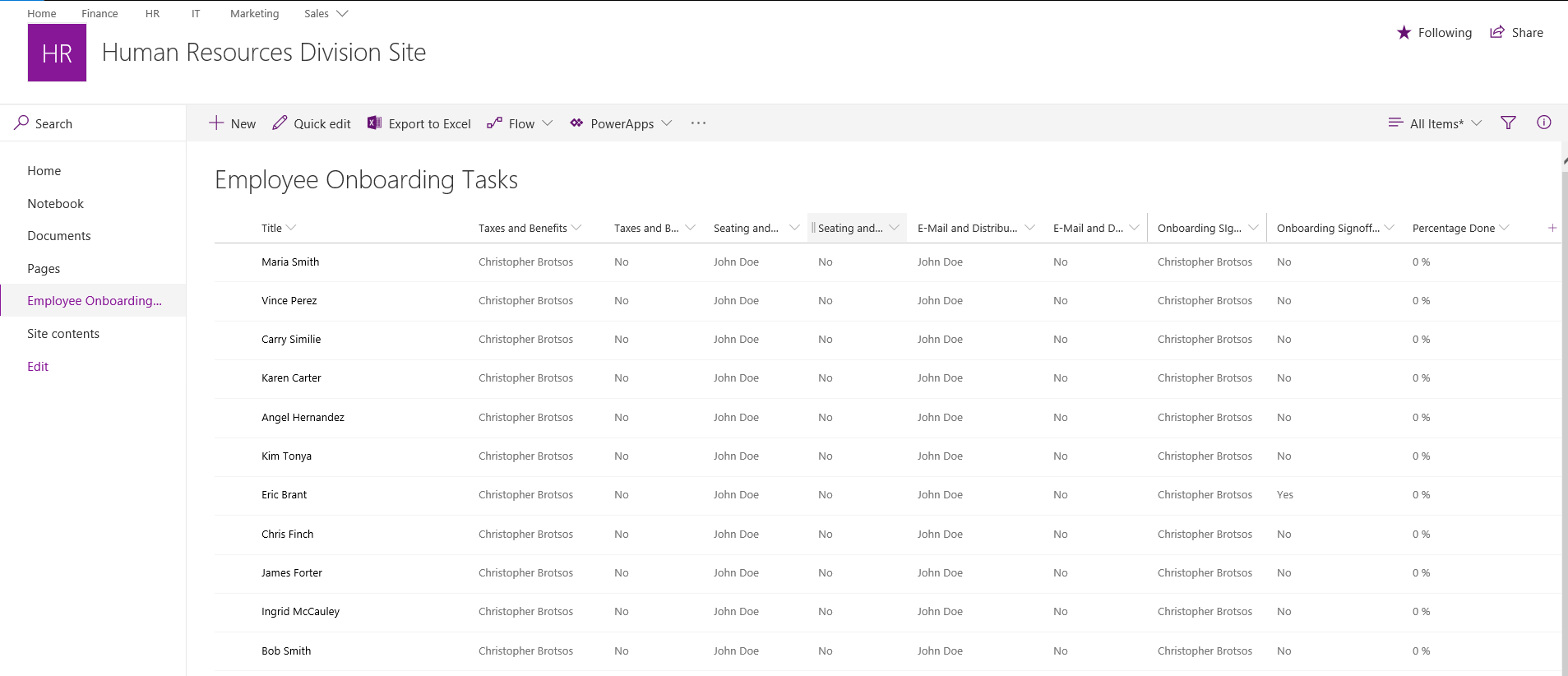
Updating Employee Onboarding Percent Complete with SharePoint Designer (SPD) Workflow
Human Resources (HR) team members are going to come into the Employee Onboarding Tasks list and simply update the list item for the appropriate task on the item assigned to the corresponding new hire (i.e. the new employee listed in the “Title” field). They’ll flip the “Done” option to “Yes”.
What’s key is the SharePoint Designer (SPD) workflow that is driving updates to the Percentage Complete field. This really doesn’t have to be complex.
- We have 4 different tasks that can be in two different states, and they can change or be reversed at any time.
- We’re not enforcing order.
- It makes sense, technically, to enforce all tasks to be completed before the sign-off task can be completed, but any incomplete steps should be obvious to the person signing off.
- If a tasks’ completed state is marked as “Yes”, we’ll count it as a value of ‘1’. If it is marked “No”, we’ll count it as a value of ‘0’
- Along the way, we’ll tally up those points, and then divide the tally by the maximum total of 4.
- Finally, we’ll assign that quotient to the “Percentage Done” field.
- Our workflow will be designed to fire OnCreated and OnChanged (the former, just in case a late entry comes in where everything was already completed before the item is entered).
With just a few variables, look at how concise the SharePoint Designer (SPD) workflow can be:

That’s it…let’s see the SharePoint Designer (SPD) workflow in action:
Reporting on Human Resources (HR) Employee Onboarding with Microsoft Excel
Finally onto our Microsoft Excel Pivot Table for analysis. Also, as reported at the top of the post…if you want to learn how to publish this chart to an Office 365 SharePoint page to make it accessible directly in the Microsoft Excel Web Access Web Part, take a look at this post and this one too.
Here though, we’ll focus mainly on the export action and building the Microsoft Excel Pivot Table for effective, intuitive, and interactive analysis. Note at the end, I filter out Onboarding Signoff Done = “Yes” so that I’m only viewing the new hires for which onboarding is not yet complete.
And, to close, one more very important note. If a change is made to the Office 365 SharePoint list, you do not need to export the list again. Simply use the Data > Refresh function in Microsoft Excel:
That’s Human Resources (HR) employee onboarding in Office 365 and SharePoint using all out of the box tooling. There’s a lot more to come from the Human Resources team.