



This post demonstrates how to use Azure Data Factory Copy Data activity to copy an Azure Blob file to Data Lake. The steps followed are to:
- Create Azure Blob Content
- Setup Linked Services in Azure Data Factory
- Setup Azure Data Factory Datasets
- Create the Pipeline with the Copy Data Activity
Create Azure Blob Content
To start, upload a CSV file to an Azure Blob Storage container. For example:
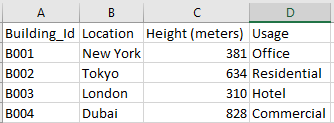
Those results can now be viewed directly in the blob container. To illustrate:

Setup Linked Services in Azure Data Factory
Afterwards, setup Linked Services for the CSV Source and Sink.

Setup Azure Data Factory Datasets
Now, create two datasets.
The first set is the input CSV using a direct pointer to the input file.

The second dataset uses the Azure Data Lake Storage Gen2 linked service and specifies the destination container directory: For example:

Create Pipeline with Copy Data Activity
After creating the datasets, specify the Source details. The Source dataset is “ds_azblob_buildingsin_csv” with an Additional column, “FileName” which stores the dataset $$FILENAME as shown below:

Afterward, the Sink details must be defined. The dataset is pointing to the ADLS Gen2 data set created above and the “File extension” property is updated to “.csv”: The Sink details are shown below::

Run Pipeline and Validate the Results
Run the Pipeline. After execution, the results can be viewed and confirmed that all four records are copied: See the following screenshot:

Furthermore, the contents can be viewed in the View/Edit feature available in the container browser:

Conclusion
This post demonstrates how to use the Azure Data Factory Copy Data activity to copy an Azure Blob file to Data Lake. The steps are:
- Create Azure Blob Content
- Setup Linked Services in Azure Data Factory
- Setup Azure Data Factory Datasets
- Create the Pipeline with the Copy Data Activity
After following these steps, the data is extracted from the blob CSV, transformed to include a new Filename column, and a new CSV is created in the Azure Data Lake Storage Gen2 container.